This is a guide on how to make a booking at Jwala or Dopotta Lodges
Click on the image to view full screen with a slideshow of all the steps below or scroll down to view the images with instructions below each image.
*If you need help with making a booking you can contact us at: admin@jwala-dopotta.co.bw with your booking details and we’ll schedule the booking for you.
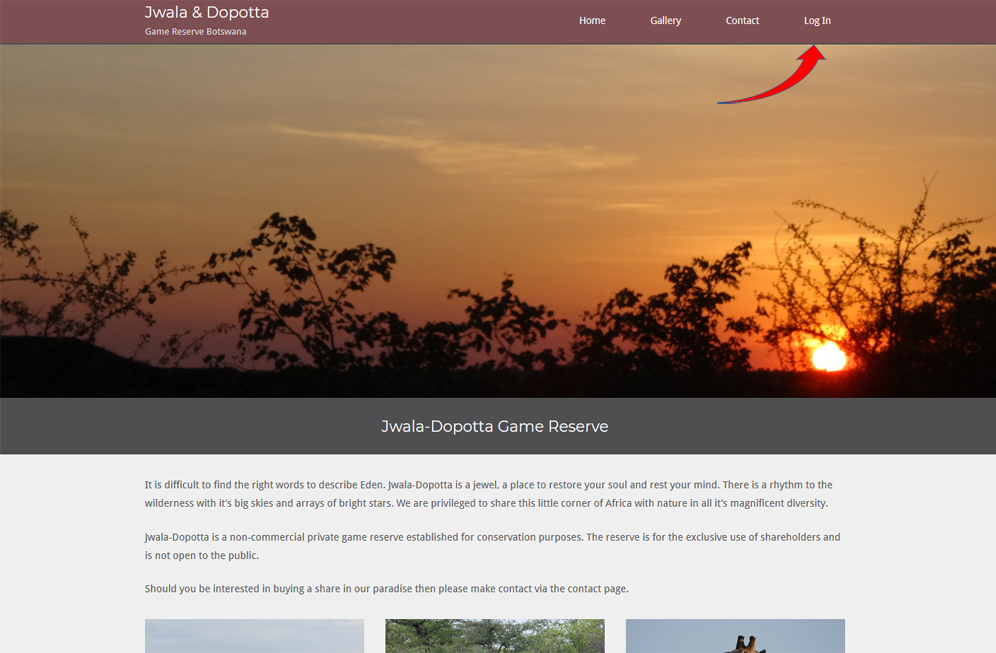
Step 1 – First you’ll need to login to your account with the username and password provided, click on the login link on the main menu.
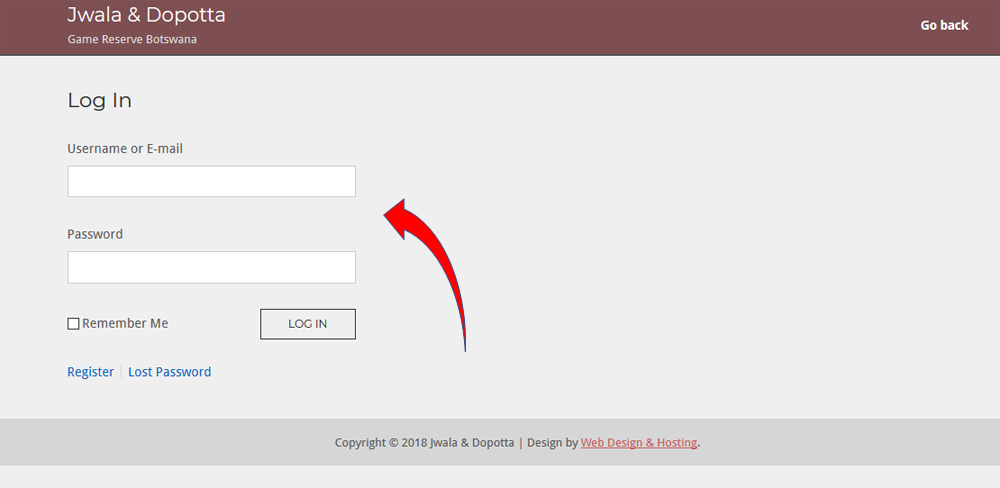
Step 2 – On the login screen enter your username and password that was provided to you and then click the Login Button.
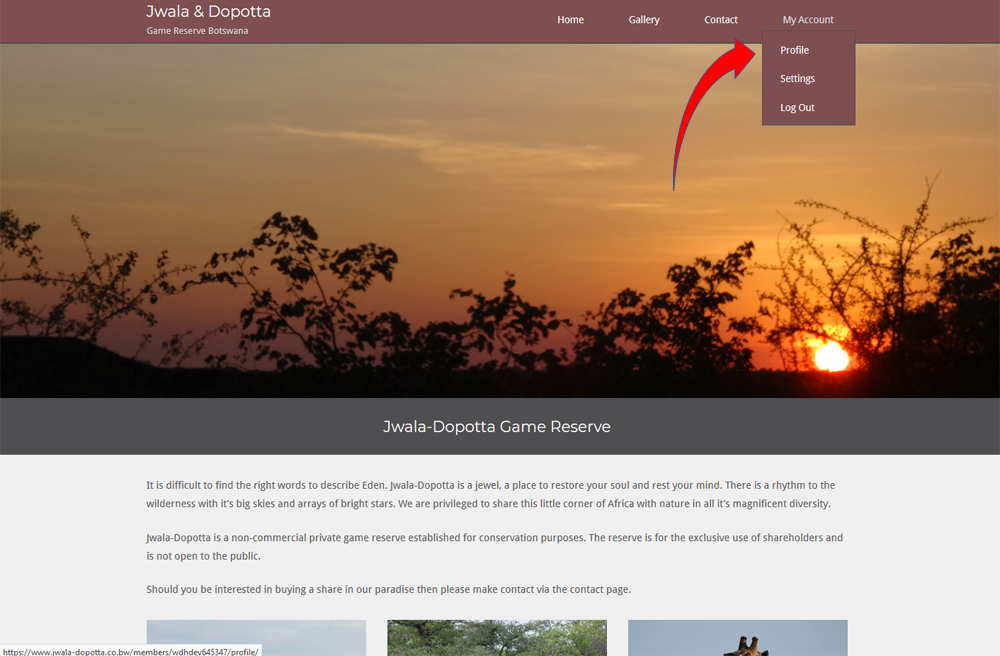
Step 3 – Once logged in you will now see the My Account link on the Main menu select either My Account or Profile link to continue
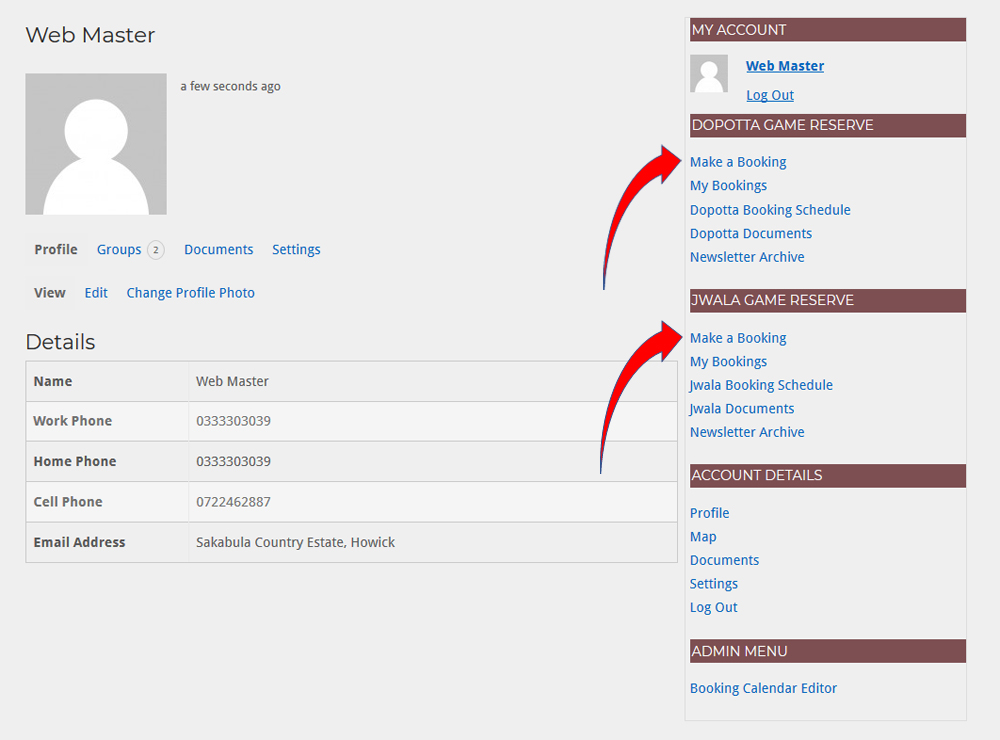
Step 4 – On your profile page you’ll see “Make a Booking” on the right menu. Please note that Jwala shareholders will only see the Jwala section and Dopotta shareholders will see the Dopotta menu. If a shareholder is a member of both lodges they will see both sections like the example image.
Click on Make a Booking for the relevant lodge.
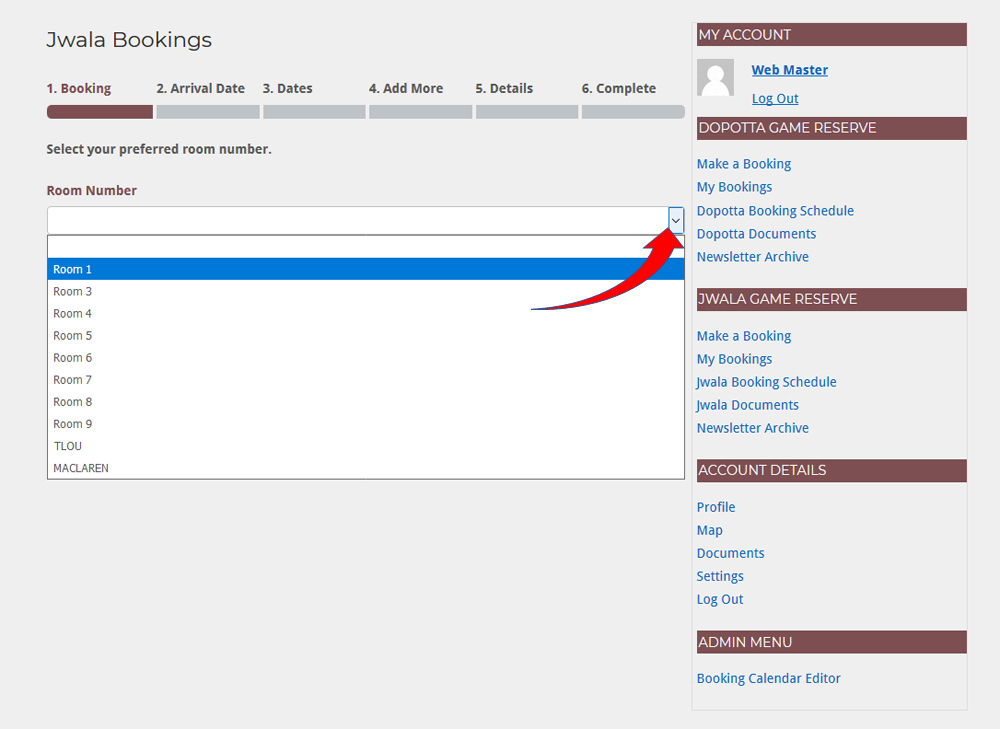
Step 5 – Select the preferred room number in the drop-down to book that room.
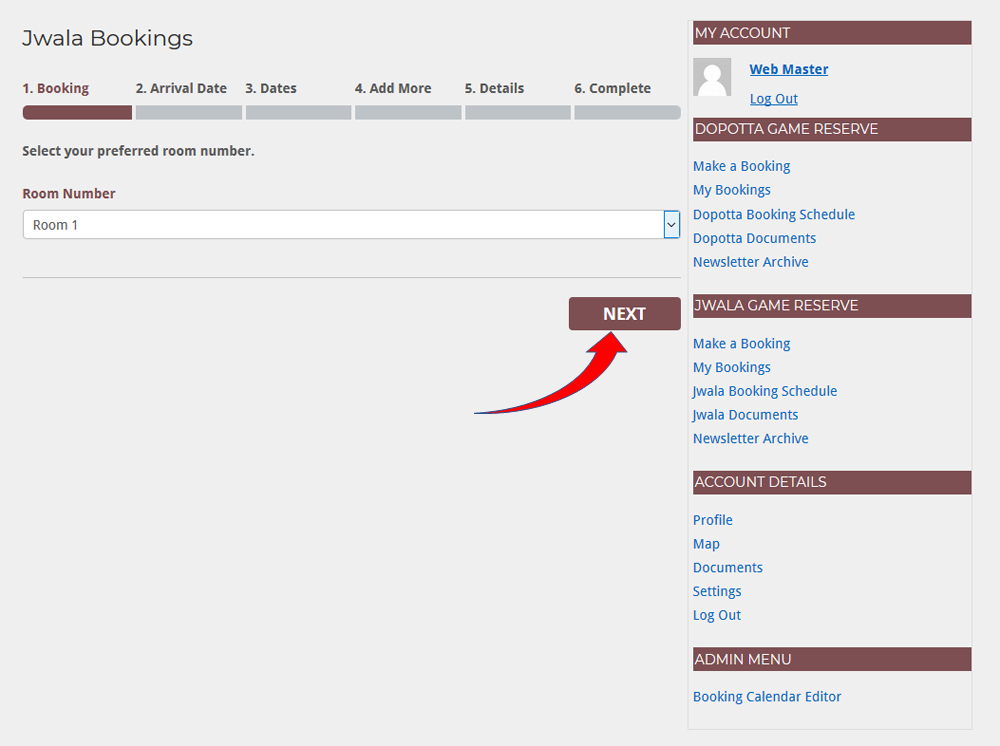
Step 6 – Click next to proceed. Note that if you wish to book multiple rooms the option will be available at (4. Add More) stage of making a booking.
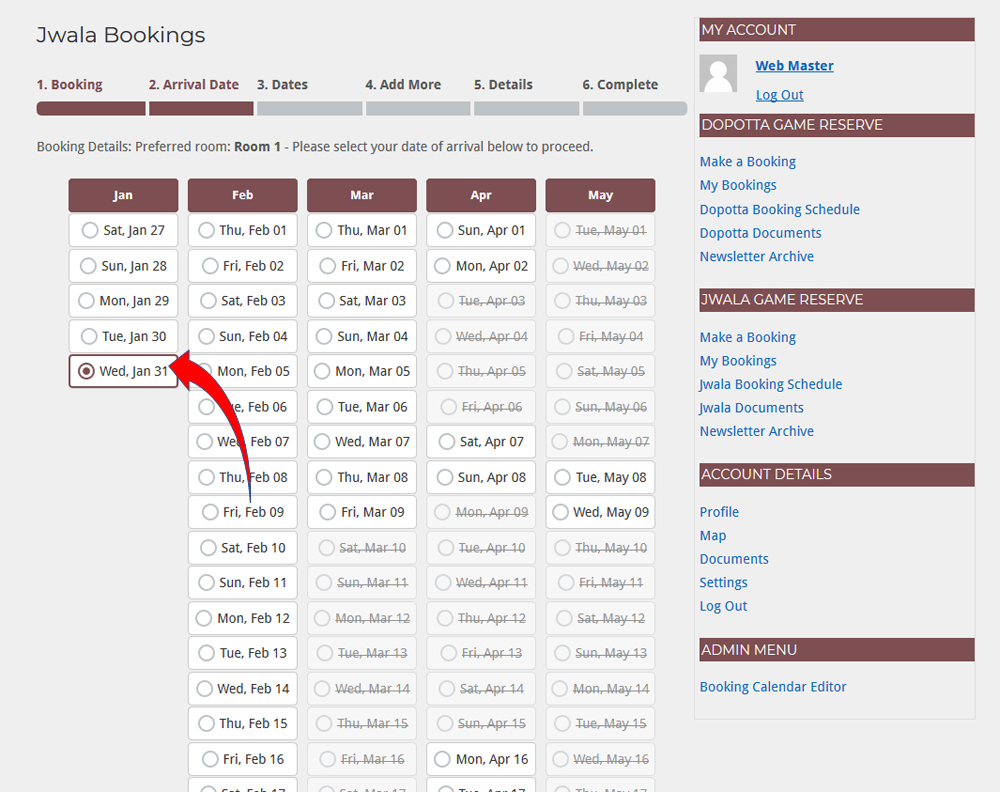
Step 7 – Select the date of your arrival to proceed. (Note if a date has been crossed out the selected room has already been booked on those dates. You can click on the back button and select another room for your preferred booking dates}
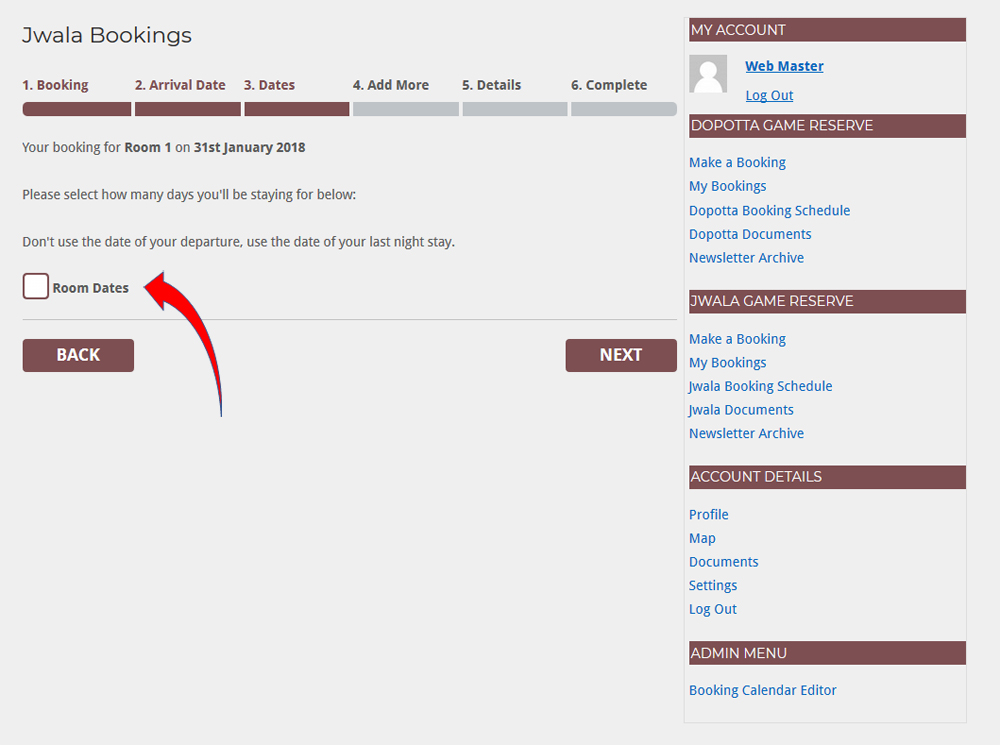
Step 8 – Click Room Dates to select how many days you’ll be staying at the selected room.
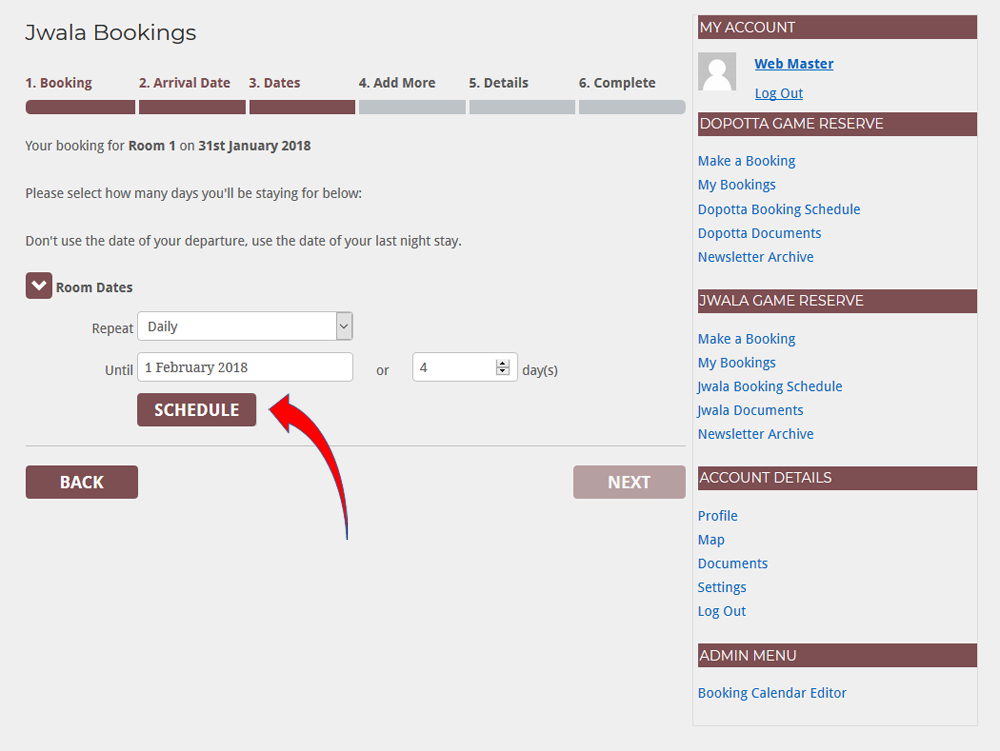
Step 9 – You can now select the dates you’ll be booking. Click on the “until” date to select on a calendar or enter the amount of days. Then click on the schedule button. (Note that you must select the date of your last night stay instead of the date of your departure)
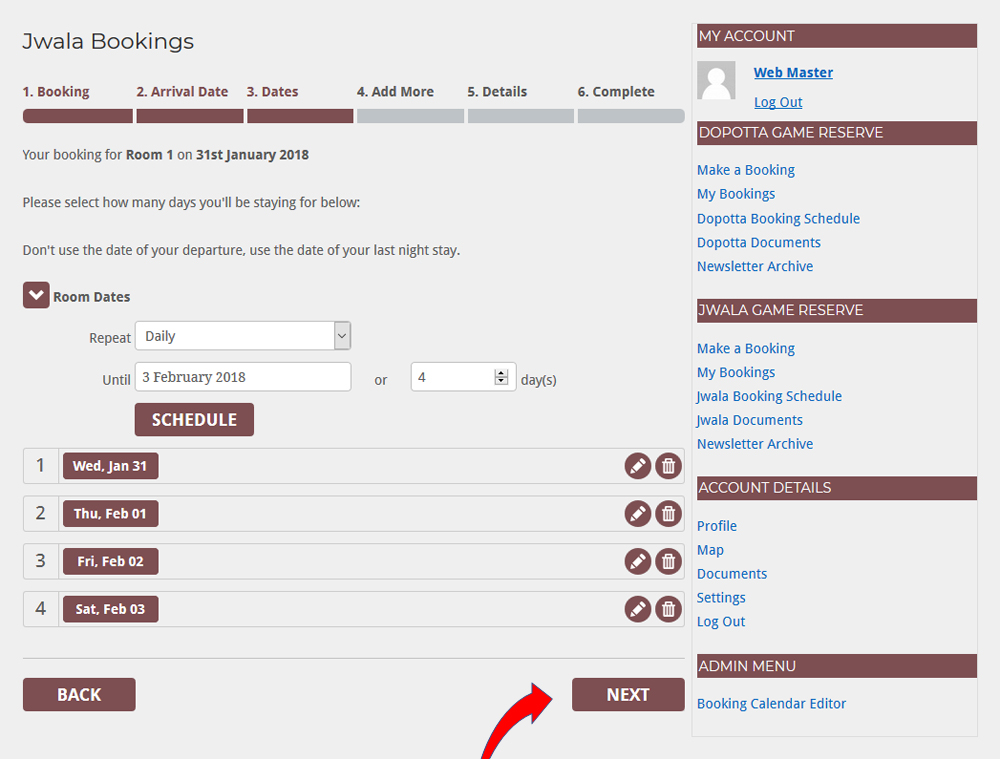
Step 10 – If the dates look correct click on the next button to proceed.
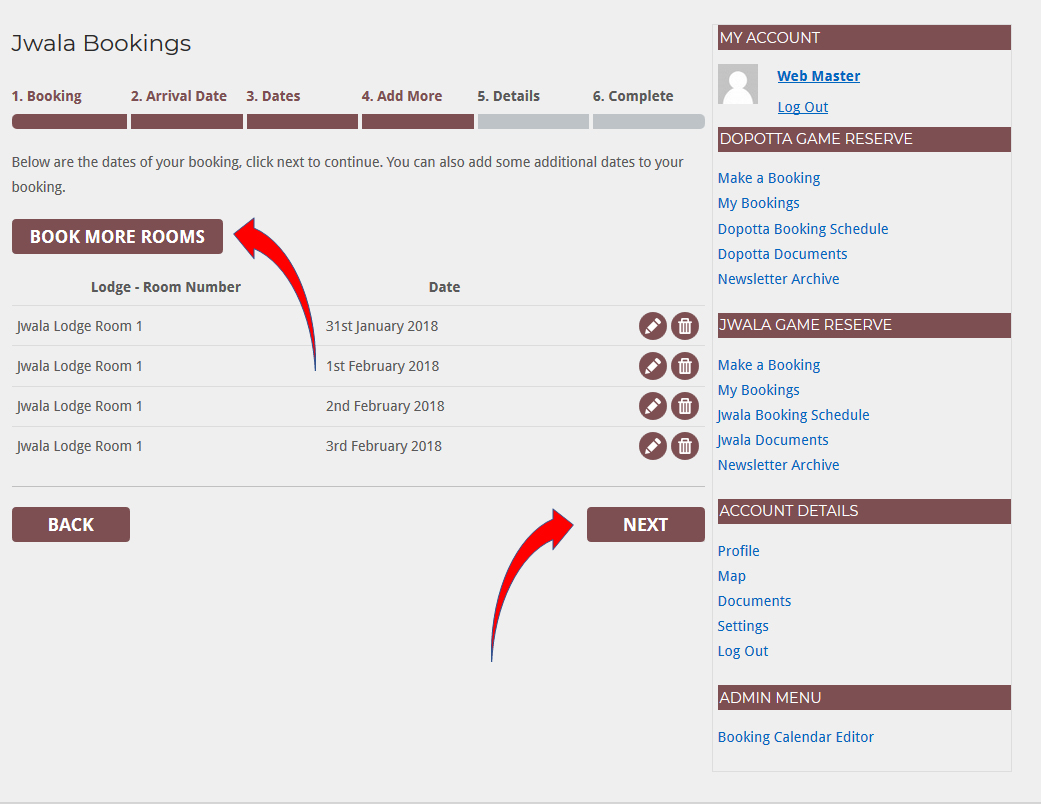
Step 11 – If you would like to book additional rooms you can click the Book More Rooms Button. Your current booked room and dates will be saved and you’ll return to the first stage (1. Booking) to select another room.
If booking a single room you can proceed by clicking on the Next Button.
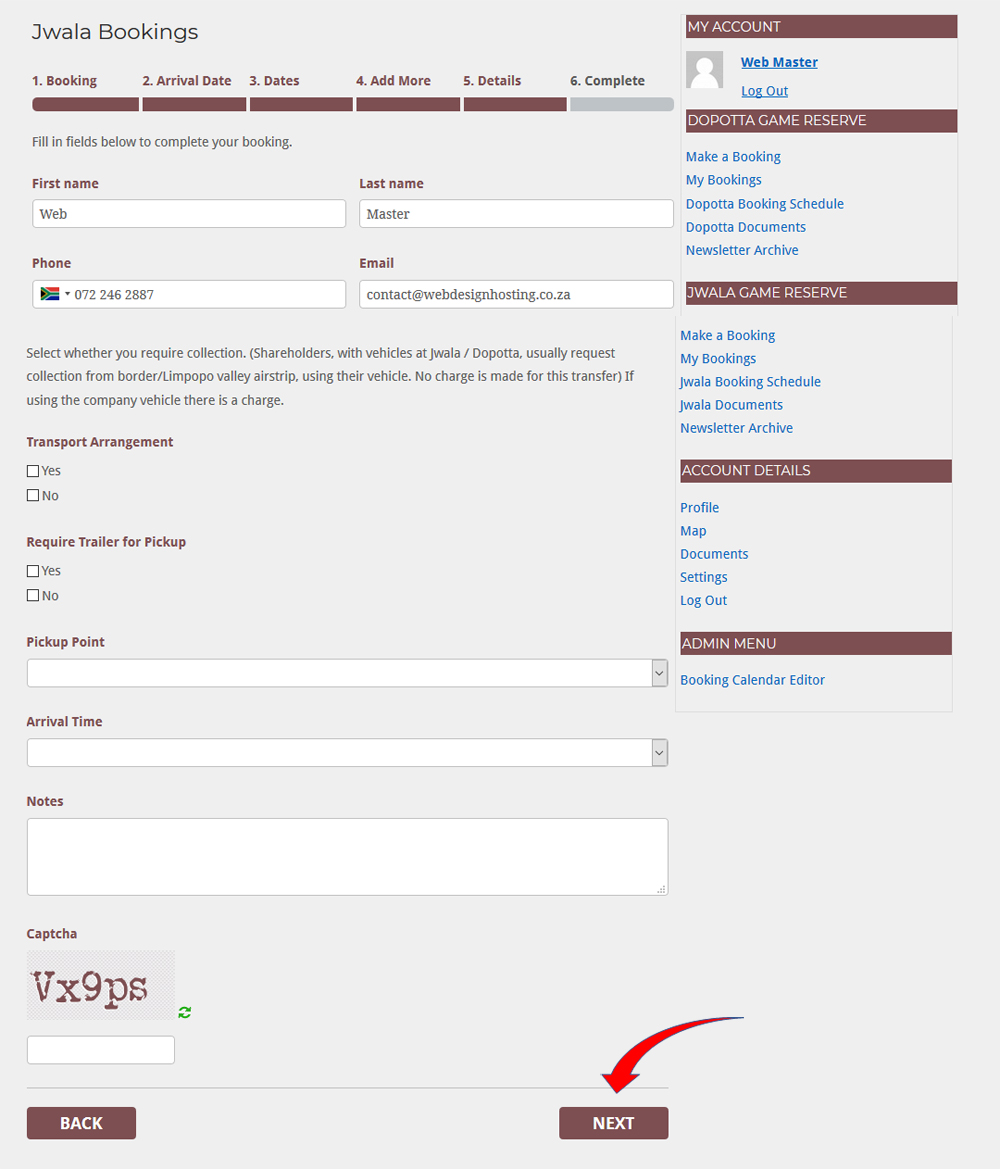
Step 12 – You will need to enter your details on this screen: Name, Phone number, Email and transport arrangements if needed.
Enter the Captcha security code and click next to complete your booking.
An Email of your booking will be sent to the Admin as well as your supplied email address.